
Organize your projects the way you see the work, and every view follows
Work tends to arrive sorted the way someone else needs it, and a flat list of projects can’t show how it fits together for you. The Projectpad nests each project where you think it belongs.
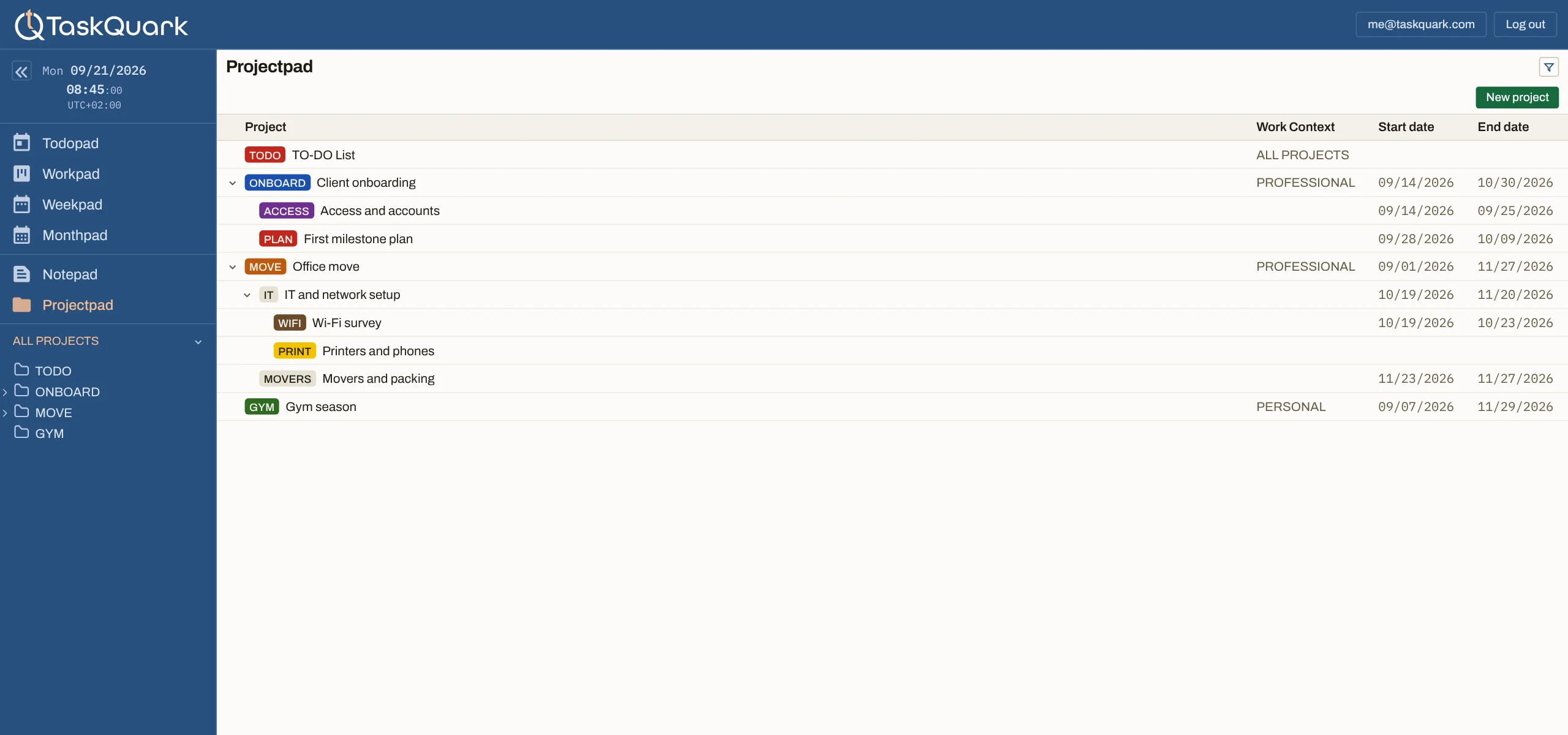
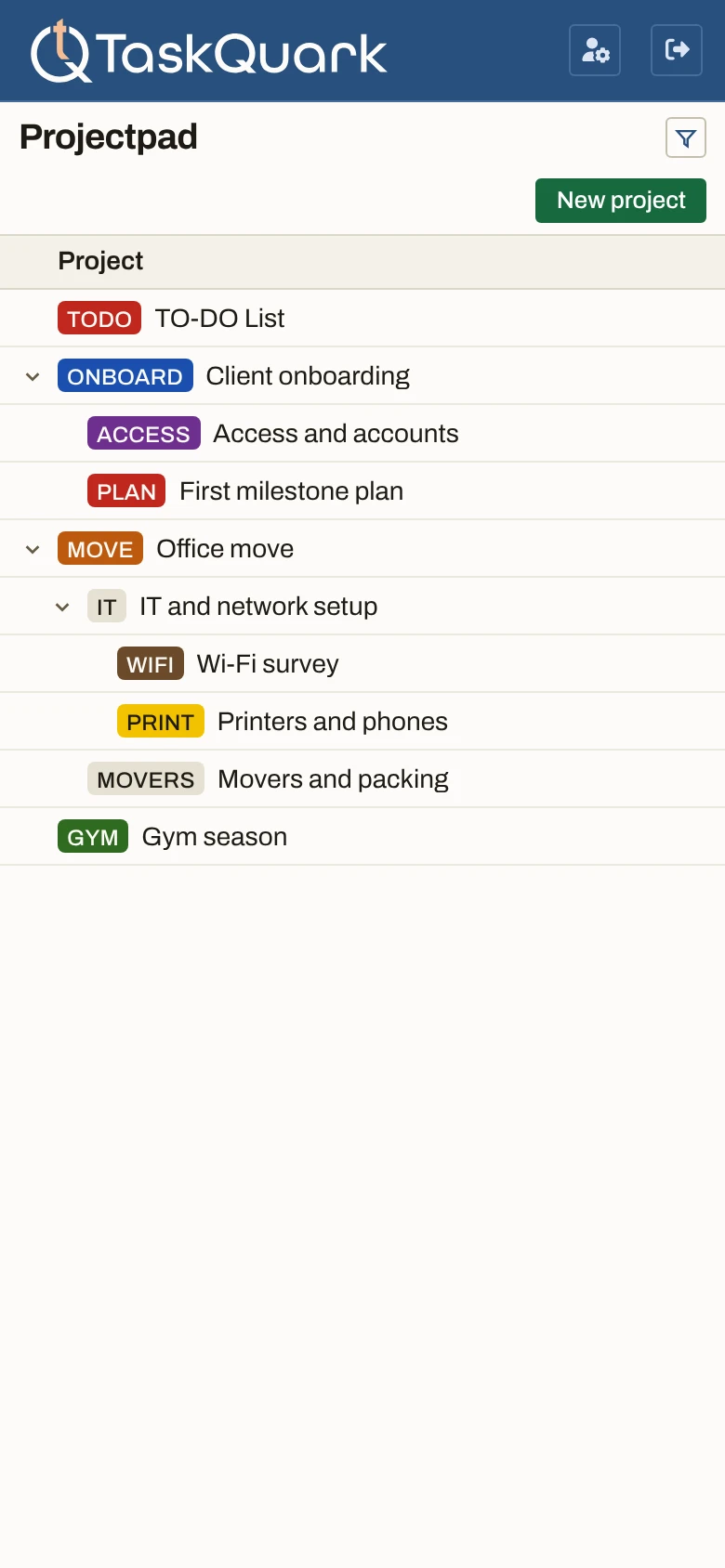
- Projects. One row per project, with its subprojects indented under it. Nest as deep as the work goes.
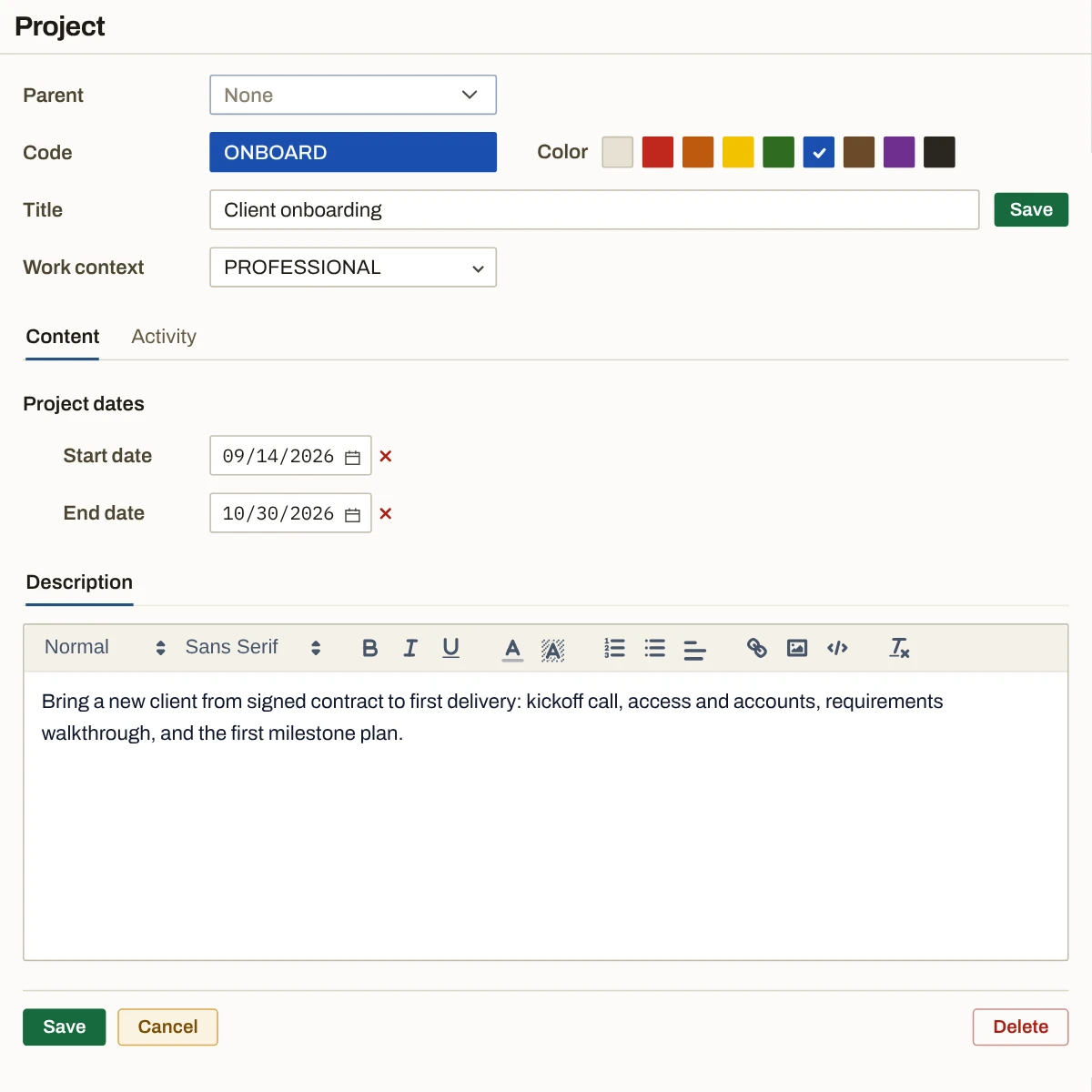
- Code. Each project has a short code in the color you pick. The same chip marks its tasks and notes on every other pad.
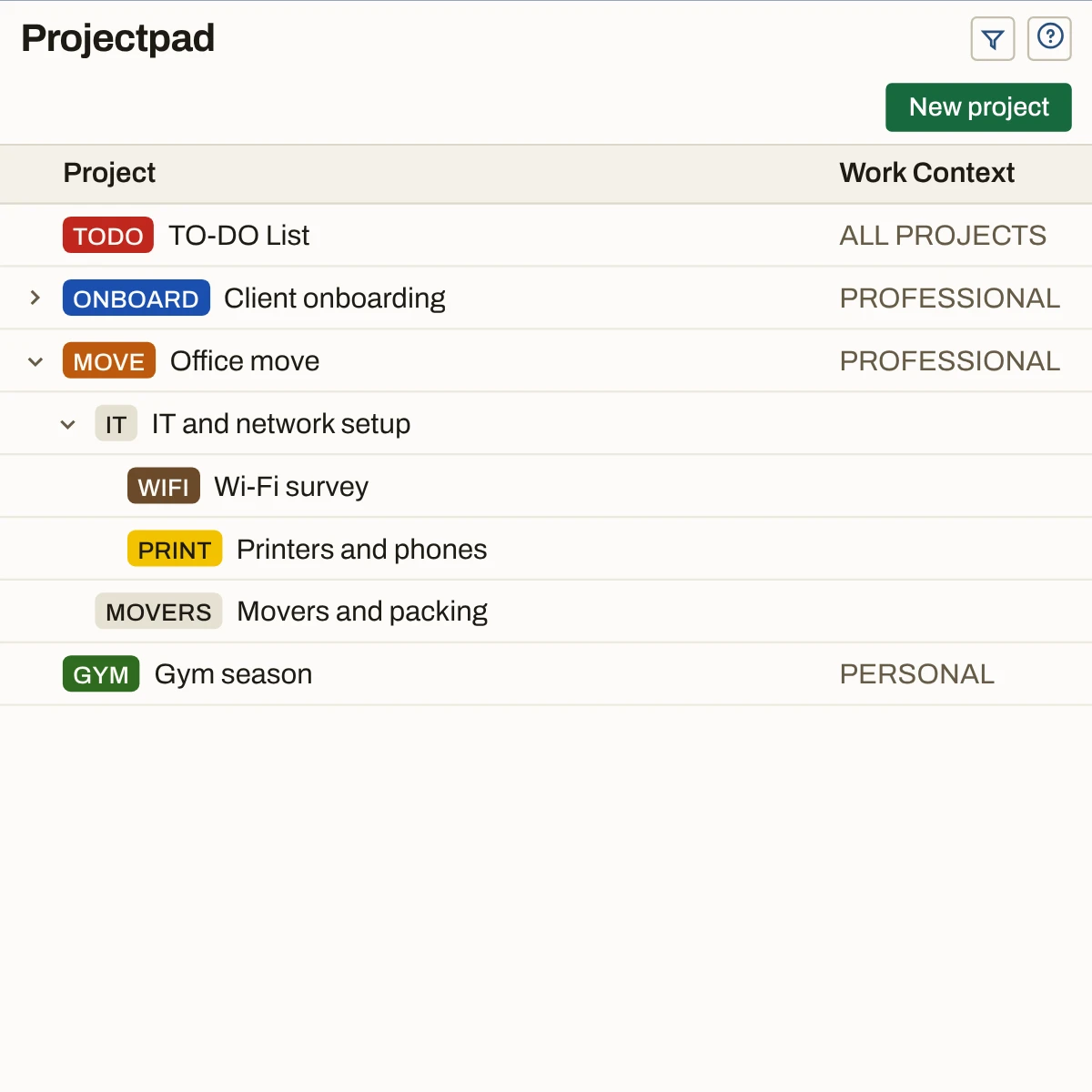
- Work context. Professional or personal, chosen for each top-level project and followed by its subprojects. The default TO-DO List belongs to both.
- At a glance. When each project starts and ends, beside its work context. Fill in only what you need.
Nested the way the work is, not flattened to fit a list
A client has an engagement, the engagement has a rollout, the rollout has a training week. A flat list of projects leaves you to fake the rest with naming conventions. Here a project can hold projects, as many levels down as you need.
Professional and personal, together or one at a time
You make each top-level project professional or personal, and everything under it follows. Pick one in the sidebar and every pad narrows to it: the day shows only those tasks, the week only that schedule, and this list only those projects.
A short code that follows the project everywhere
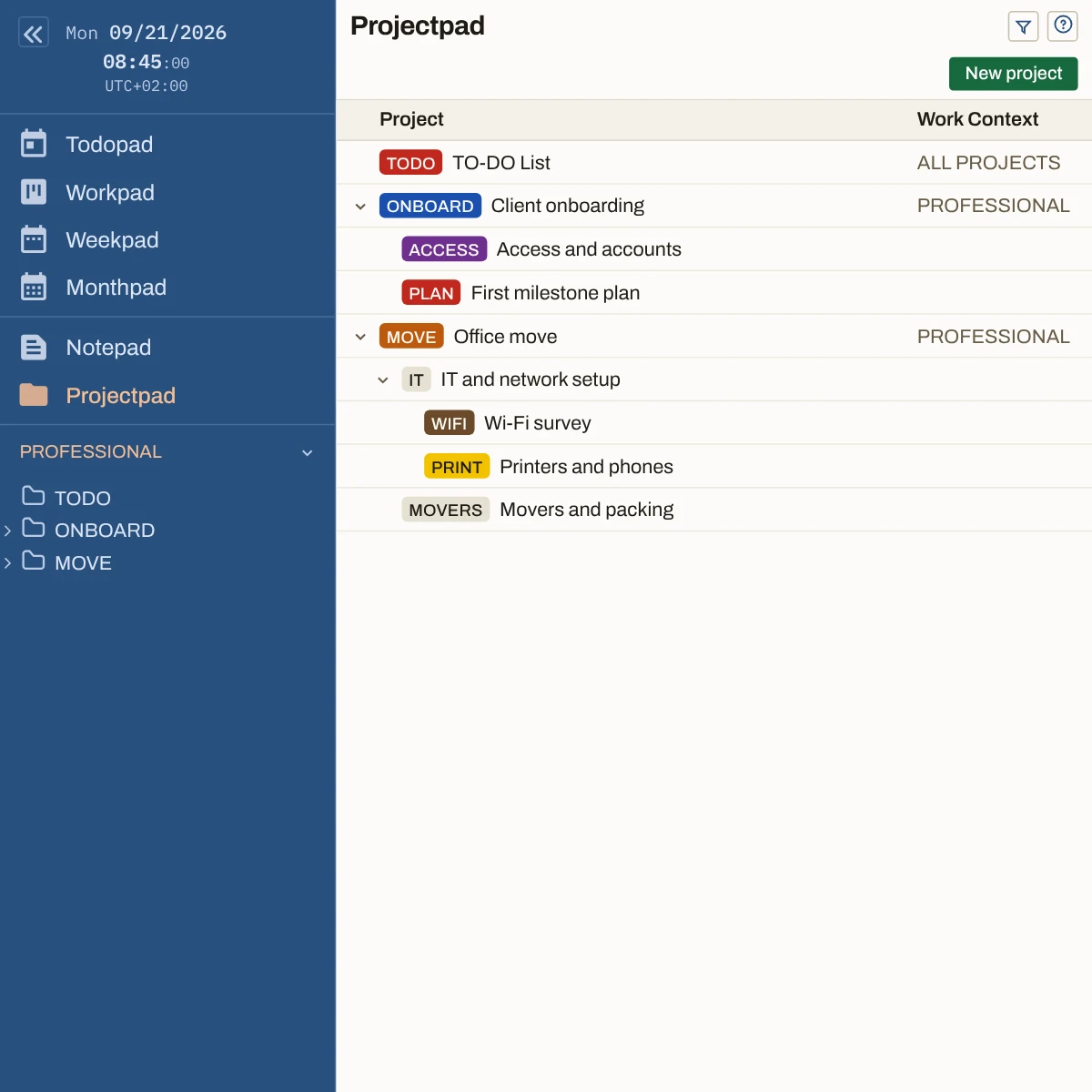
Every project gets a code — ONBOARD, MOVE, GYM — and one of nine colors. That chip sits on each of its tasks in the day, the week, and the month, on its board, and beside its notes. You stop reading project names and start recognizing them.
The same chip on every pad
A task on the Todopad, a card on the Workpad, a note on the Notepad — each wears its project’s code in its project’s color. Set it once, on the project, and every pad follows.
Short on purpose
A code has to fit beside a task title on a busy day, so keep it to a word or two. The full name lives in the tree, where there is room for it.
A default project in every context
Every profile starts with the TO-DO List, code TODO, for whatever doesn’t belong to a project yet. It has no work context of its own, so it shows under professional, under personal, and under both.
A client, then each thing you do for them
Freelancing, the client is the top of the tree and each engagement sits under it. Finish one and start the next beside it. Jobs and clients change their tools. This one stays yours.
The program, its workstreams, their phases
Managing a team, the work is already a tree — you draw it on whiteboards. Here it is the same tree, and selecting one branch narrows every pad to the work under it.
The parts of a business nobody lists for you
Running a business, Operations, Billing, and Hosting are projects that never end. Give each one a code and they stop being background noise and start being a place things go.
Your projects, in the shape you give them.
Add your first project and give it a code and color.Everything else you plan hangs from it.